


PGT: GFX, Launcher & Optimizer
4.42.04K Reviews
App Specs
- Version
- 0.21.6
- Updated On
- License
- Free
- Downloads
- 10,000,000+
- Developer
- Trilokia Inc.
- Categories
- Libraries & Demo
- Platform
- Android
Screenshots
 Analysis by AppCompare
Before changing anything in a graphics utility, I’d start with a modest goal: make one game feel more consistent, not force every title to look or run the same. That distinction matters with PGT: GFX, Launcher & Optimizer. Its appeal is the chance to adjust game-related settings, but those adjustments are only useful when they suit the phone, the game and what you value most—visual detail, responsiveness, or a balance between them.
Where players tend to get stuck
The first snag is expectation. A graphics tool can expose choices that are normally tucked away, but changing a setting is not the same as upgrading a phone’s processor, cooling or memory. If a game is demanding too much from the device, lowering visual quality may help it feel steadier, while pushing settings higher can do the opposite. I’d treat each adjustment as a trade-off rather than assume that the most ambitious option is automatically best.
Another source of confusion is judging a change from one short session. A quiet menu or an empty area may run differently from a busy match, and performance can also shift as a phone warms up or other apps remain active. When I compare settings, I use the same game mode and similar conditions, then give each configuration enough time to reveal whether it actually feels better.
It also helps to separate the launcher from the graphics controls. Having games gathered in one place is convenient, but organization alone does not improve gameplay. If the game launches normally but still stutters, the issue may be the chosen configuration or the phone’s current workload, not the launcher itself.
A careful first setup
PGT is a free utility from Trilokia Inc. in the Libraries & Demo category. It has a 4.5 average from around 188,000 ratings and has passed 10 million installs, which suggests plenty of players have tried it, though popularity cannot guarantee the same result on every device. It is rated for Everyone, and version 0.21.0 is listed for Android 7.0 and up.
Before applying a profile, I’d check that the game you want to adjust is the one you intend to launch and note its current in-game graphics choices. That gives you a simple reference point if the new setup feels worse. Make one meaningful change at a time where possible; if you alter several options together, it becomes difficult to tell which one helped or caused a problem.
For a phone that already struggles, I’d begin by favoring stability over sharpness. For a newer device that handles the game comfortably, I would be more cautious about changing settings just because extra controls are available. The useful setup is the one that improves your own play without making text, scenery or effects unpleasant to look at.
Worth Reading Before You Choose

Flipboard Shows What News Apps Must Do Beyond the Feed

Switching to Android Auto Means Rethinking Your Driving Routine

Google Calendar Makes a Crowded Week Easier to Manage

Ludo King Makes the Most of the Minutes Between Plans

Baby Panda World Brings Quick Play to Modern Phones, but Its Game Library Feels Busy

ESPN’s Live Game View Makes Following Close Games Easier
Recovering when a profile does not feel right
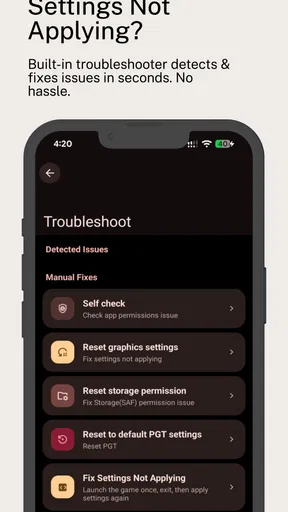
If a game becomes less responsive or looks worse after an adjustment, don’t keep stacking changes in an attempt to compensate. Return to the previous choices, or reset the profile if that option is available in the version you are using, then test again with fewer changes. Keeping a note of what you altered is a low-effort way to avoid guessing later.
If the game fails to open after you change its graphics setup, first try launching it without the new configuration and check whether the game itself has an update available. Restarting the phone can also clear temporary background load. These are ordinary troubleshooting steps, not a guarantee: if the same issue continues, the game or device may need attention beyond what a graphics utility can provide.
When the utility is not the cause
Not every lag spike points to graphics settings. A weak or unstable connection can make an online match feel delayed even when the picture is smooth. Heat, a nearly full device, background downloads, battery-saving behavior and a game-side update can also change how a session feels. I’d check those basics before blaming PGT or repeatedly altering a profile.
This is especially important when a problem appears suddenly after a game update. A configuration that was comfortable before may no longer suit the updated game, so I’d revisit the profile rather than assume the phone has permanently lost performance. If the game behaves badly with the utility’s adjustments disabled too, troubleshooting the game, connection or device is the more sensible next step.
What is PGT: GFX, Launcher & Optimizer?
Alright, so first things first. What exactly is PGT: GFX, Launcher & Optimizer? This app is basically a toolkit for gamers who want to squeeze every last drop of performance out of their devices. Whether you're playing high-end games or just want a smoother experience with your favorite casual titles, PGT is designed to help you tweak and optimize your gaming settings. It's like having a gaming PC's control panel right on your phone.
Getting Started: Installation and Interface
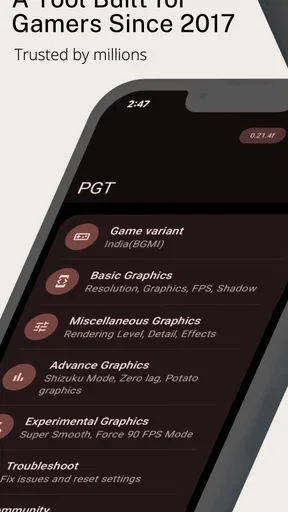
Installing PGT is a breeze. Just head over to the Play Store or App Store, hit download, and you're in business. Once installed, you'll be greeted by a clean and straightforward interface. I really appreciated how intuitive it is—no need to be a tech whiz to navigate through the settings. The main menu offers various options, each dedicated to enhancing different aspects of your gaming experience.
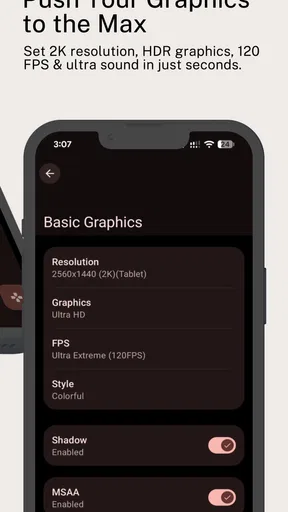
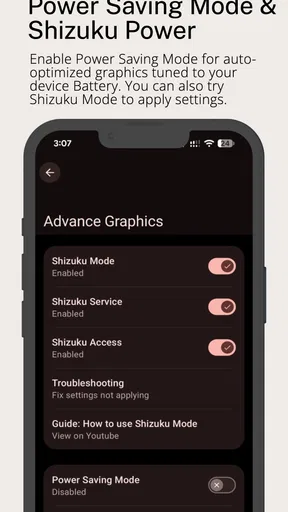
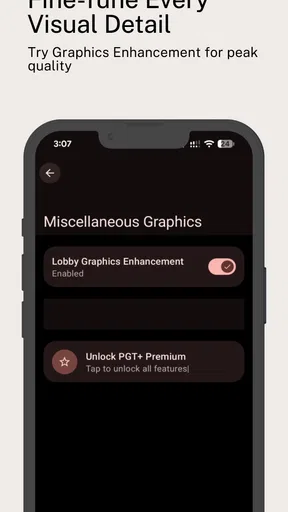
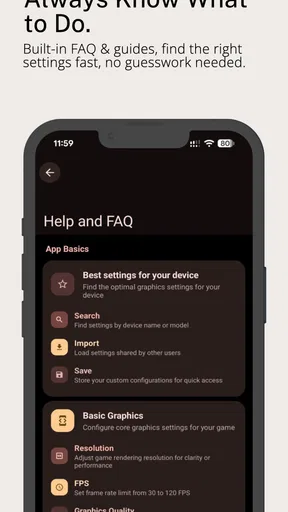
The app's layout is simple, yet effective. You have your basic options like resolution, frame rate, and graphics settings right at your fingertips. But what really caught my eye were the advanced features that let you dig deeper into the optimization process. It's like having a cheat sheet for perfecting your game settings.
Performance Boost: Does It Really Work?
Now, onto the million-dollar question—does it actually work? In my experience, yes, it does. I tried it out with a couple of heavy-duty games, and the difference was noticeable. By adjusting the graphics settings and enabling some of the app's unique features, I saw a significant improvement in frame rates and overall smoothness. No more random stutters or frame drops during intense battles!
One thing I found particularly useful was the ability to customize settings based on specific games. PGT allows you to create individual profiles, so you can tweak the settings for each game to your liking. It's a game-changer, especially if you play a variety of genres.
Extra Features Worth Mentioning
Aside from the core optimization tools, PGT comes packed with a few extras that are worth mentioning. For instance, there's a built-in game launcher that organizes all your games in one place—super handy for someone like me who tends to download more games than I can keep track of. Plus, the app offers a memory boost feature that clears up RAM, giving your device a little extra kick when it needs it most.
Another cool feature is the ability to save your settings to the cloud. This means you won't lose your optimized profiles even if you switch devices. It's a small detail, but it adds a lot of convenience.
Compatibility and User Experience
When it comes to compatibility, PGT supports a wide range of devices and games, which is a big plus in my book. Whether you're rocking an older smartphone or the latest model, the app adapts its settings to best suit your hardware. I found that it works seamlessly across different Android and iOS devices.
In terms of user experience, the app runs smoothly without any noticeable bugs or crashes. The developers seem to be on top of updates, constantly improving the app's performance and adding new features. It's nice to see an app that's actively maintained and supported.
Choosing it over simpler alternatives
Compared with using only a game’s own settings, PGT puts more adjustment options and game shortcuts in one utility, which can suit someone who likes to tune different titles separately. The simpler route—leaving graphics at the game’s defaults and using the phone’s standard controls—is better if you prefer fewer moving parts or do not want to troubleshoot a profile. I see PGT as an extra layer for curious players, not a required companion for every mobile game.
It is most useful when you have a specific reason to experiment: a game that feels uneven, a device that needs lighter visual settings, or several games whose preferences you want to keep distinct. It is less compelling if your games already run comfortably and you rarely change their settings. In that case, the extra setup may offer little practical benefit, and the built-in options are easier to maintain.
A routine that keeps testing manageable
For a realistic everyday example, imagine opening a game after work for a short online session and noticing that movement feels uneven. I would close any unnecessary apps, check that the connection is behaving normally, then test the game with a conservative PGT profile. If the picture becomes less detailed but control feels steadier, that may be a worthwhile exchange for competitive play. If nothing improves, I would restore the earlier setup rather than spend the whole evening chasing a setting.
For a story-driven game, my priorities would be different. I might accept a little less responsiveness in exchange for clearer visuals, provided the device remains comfortable to hold and the image stays readable. This is why separate game profiles can be more than a convenience: they let you choose a sensible compromise for each title instead of carrying one aggressive configuration everywhere.
A useful habit is to test in a repeatable way. Use the same kind of scene, play for a similar stretch, and pay attention to both smoothness and heat rather than judging by a single moment. If the phone gets noticeably warmer or the experience worsens over time, a profile that looked promising at first may not be a good fit for longer sessions.
Limits, costs and who should skip it
The app is free, which makes experimenting easier, but free does not mean every adjustment will be useful or risk-free for the experience. Advanced controls can tempt new users to change several values at once; the more you alter, the harder it is to find the cause if a game starts behaving oddly. I’d keep a baseline, make small changes and avoid treating any preset as universally correct.
I would skip this kind of utility if you want a guaranteed boost with no testing, if your phone already runs your games well, or if you are uncomfortable troubleshooting settings when a game behaves differently. Players who only want a tidy place to open their games may prefer a basic launcher. Those who need help with connection lag should focus on their network, since graphics adjustments cannot fix a poor signal.
One practical question is whether PGT replaces a game’s own settings. I would not approach it that way: check the game’s controls too, and avoid making conflicting changes in two places without a clear reason. Another is whether it suits every game; its purpose is tied to specific FPS mobile games, so I would not assume every title can benefit equally. Testing one relevant game first is a safer way to decide.
Final Thoughts
So, what’s the verdict? If you're serious about gaming on your mobile device, PGT: GFX, Launcher & Optimizer is definitely worth checking out. It's user-friendly, effective, and packed with features that can genuinely enhance your gaming sessions. Whether you're a casual gamer or a hardcore enthusiast, PGT provides the tools you need to optimize your experience and enjoy your games the way they were meant to be played.
Give it a shot, and let me know how it works for you. Happy gaming!
My practical recommendation is to treat PGT as a tuning aid, not a magic fix: choose one game, preserve a known-good starting point, and judge changes during the sort of session you actually play. If the result is not clearly better, reverting is a perfectly good outcome. That measured approach lets the app’s flexibility work for you without turning every game launch into another round of guesswork.
Pros
- Enhances gaming performance significantly.
- User-friendly interface with easy navigation.
- Customizable settings for different games.
- Supports a wide range of popular games.
- Regular updates improve functionality.
Cons
- Some features require a premium upgrade.
- May not support all device models.
- Occasional compatibility issues with updates.
- Can drain battery faster during use.
- Requires permissions that some users may find intrusive.
FAQs for PGT: GFX, Launcher & Optimizer
What is PGT: GFX, Launcher & Optimizer used for?
PGT: GFX, Launcher & Optimizer is a tool designed to enhance your gaming experience by optimizing graphics settings for better performance. It allows users to customize various aspects of their game graphics, such as resolution, frames per second (FPS), and rendering quality, making it ideal for gamers looking to improve gameplay smoothness on their devices.
Is PGT: GFX, Launcher & Optimizer compatible with all games?
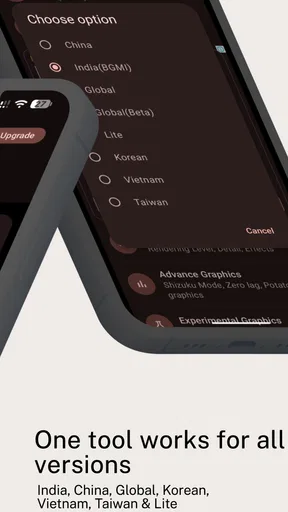
While PGT: GFX, Launcher & Optimizer is primarily designed for popular games, particularly battle royale titles, it may not be compatible with every game on the market. Users should check the app's compatibility list or community forums to ensure it supports their favorite games before downloading.
Does using PGT: GFX, Launcher & Optimizer require root access?
No, PGT: GFX, Launcher & Optimizer does not require root access for most of its features, making it accessible to a wider range of users. However, specific advanced features might need root access to function optimally, which is something users should consider if they want to utilize the app fully.
Can using PGT: GFX, Launcher & Optimizer lead to game bans?
There is a potential risk of being banned when using any third-party tool that alters game settings. While many users have successfully used PGT: GFX, Launcher & Optimizer without issue, it’s important to stay informed about the terms of service of the games you play and use the app cautiously.
Is PGT: GFX, Launcher & Optimizer safe to use on my device?
PGT: GFX, Launcher & Optimizer is generally considered safe, but as with any app that modifies system settings, users should download it from a reputable source like the Google Play Store. It’s important to read reviews and stay updated with the latest versions to avoid potential bugs or security issues.


